Best RDP Client for Mac: Use RDP on macOS to Connect to Windows

Remote Desktop Protocol (RDP) is a must-have tool for anybody who needs to connect remotely to their Microsoft Windows computers or work servers. Whether you are working with office systems, hosting services, managing Windows instances in the cloud, or transferring files, having the skill to work with RDP from Mac is critical.
In this professional’s guide to Mac RDP, you’ll learn everything there is to know about the remote desktop for Mac. We’ll also show how to connect from macOS to Windows using the remote desktop protocol, as well as how to connect to a Windows server on Amazon Web Services utilizing RDP on a Mac machine.
What Is an RDP Client for Mac?
RDP client for Mac is used to describe the software that will allow you to connect your Mac device to a Windows computer. The problem is that Microsoft RDP is a proprietary technology, so it’s not included in macOS out of the box.
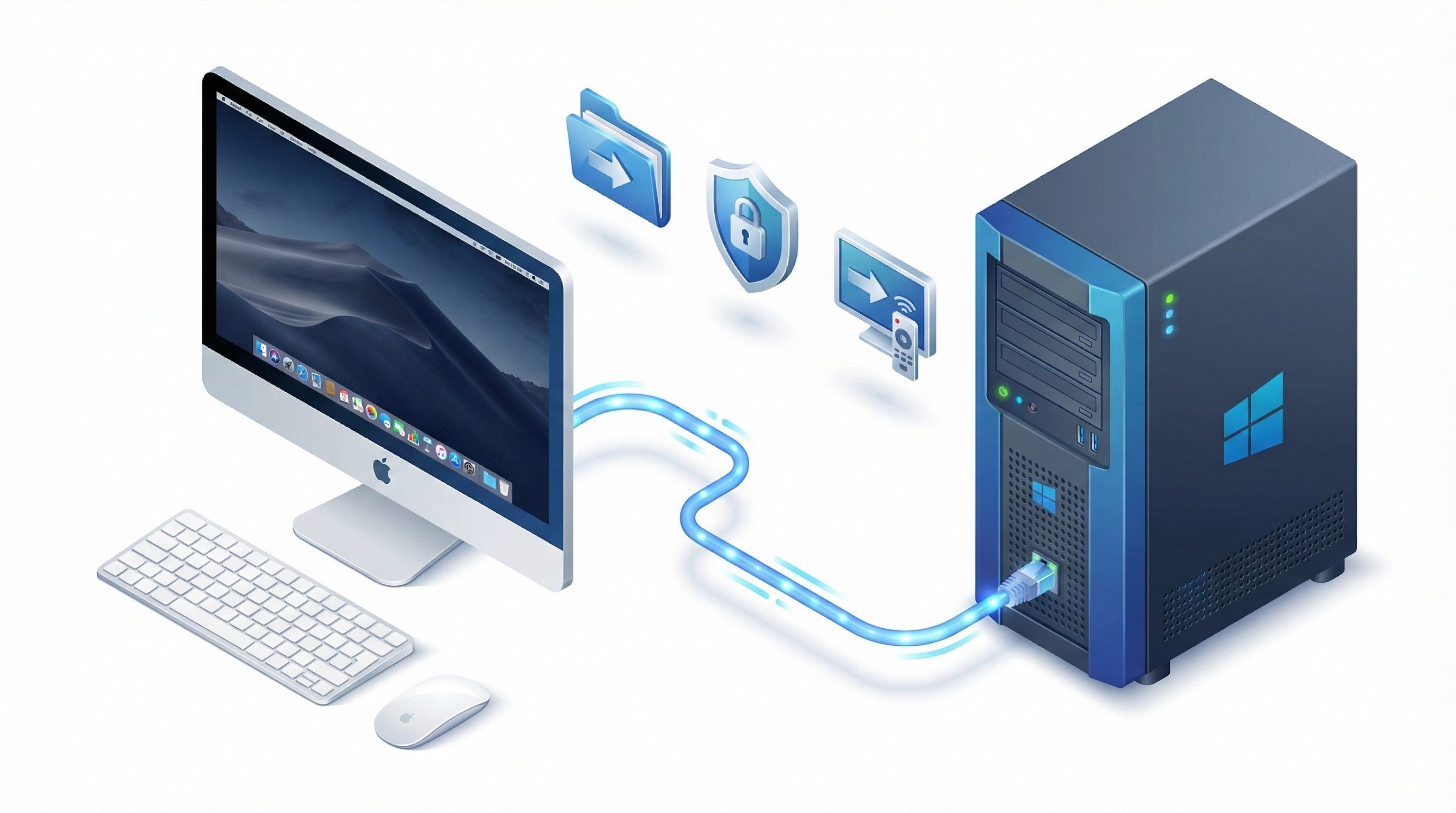
However, modern solutions help save customers time and money by providing native performance with up to 50% less bandwidth usage and comprehensive security features. The macOS RDP client has been a long time in the making, and it eliminates the need to use complex third-party tools.
Why Would You Use RDP from a Mac?
Mac users are frequently in heterogeneous Windows/macOS environments. An RDP client is the bridge that makes it possible for Mac and Windows computers to communicate.
| Reason | Description | Importance |
|---|---|---|
| Use Windows Software | Run programs that are Windows-only (e.g., specific ERPs, Legacy apps) directly on your Mac screen. | ⭐⭐⭐⭐⭐ |
| Server Administration | Manage Windows servers remotely without needing a physical monitor or second laptop. | ⭐⭐⭐⭐⭐ |
| Cloud Access | Connect to Windows cloud servers (AWS EC2, Azure, GCP) securely. | ⭐⭐⭐⭐ |
| IT Support | Provide remote technical support for Windows users from your workstation. | ⭐⭐⭐ |
Best RDP Clients for Mac (New 2026 Updated)
We tested the most popular clients based on performance, features, and enterprise capability.
1. Microsoft Remote Desktop (Official – Top Pick)
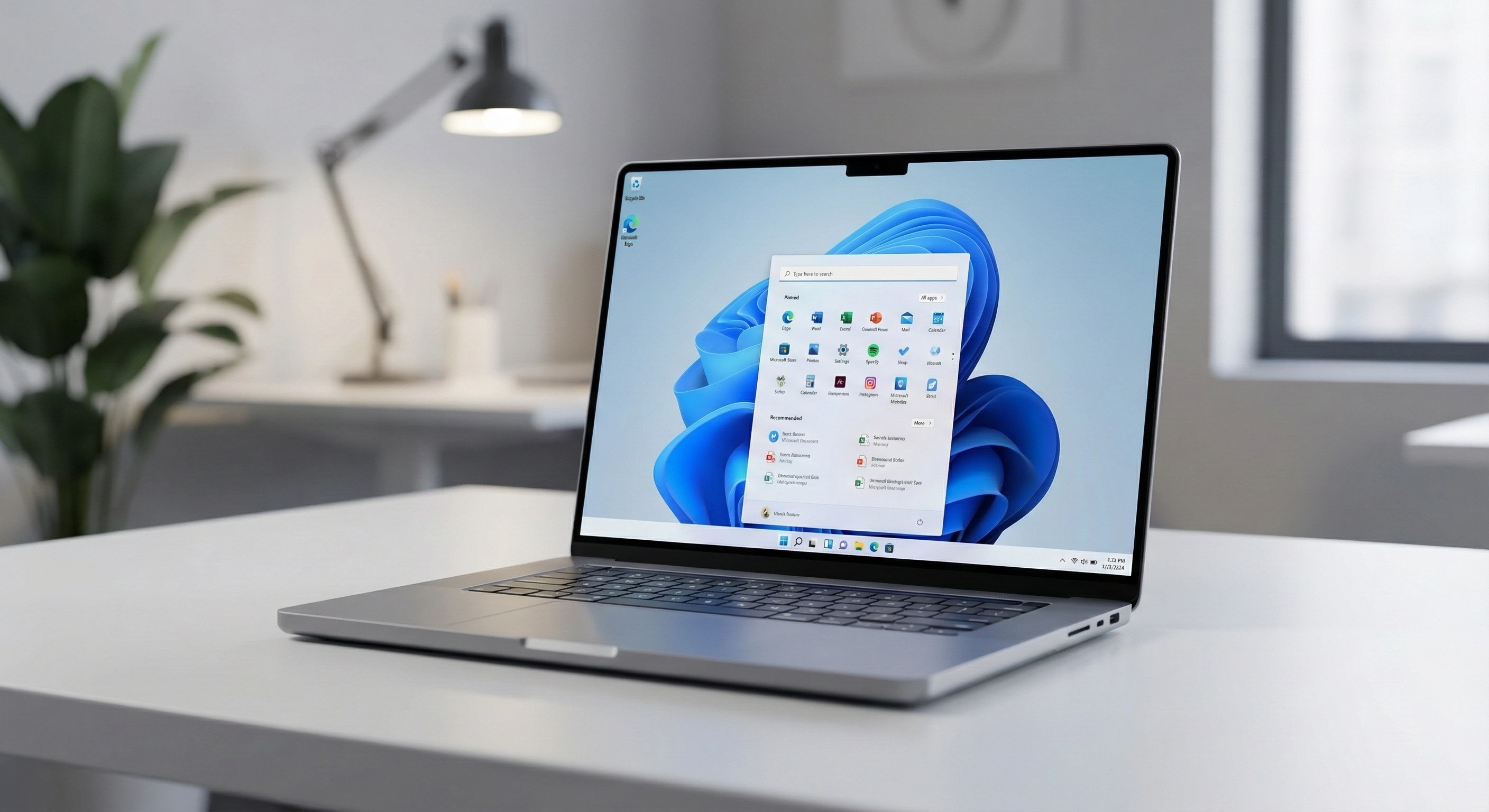
If you want reliability, this is the most trustworthy app. It is the official Microsoft-provided macOS RDP client.
2. Royal TSX
Royal TSX is a powerhouse for IT professionals who need to manage multiple connections simultaneously.
Comparison: RDP Clients for Mac
| RDP Client | Price | Best For | Multi-Monitor | Enterprise Features |
|---|---|---|---|---|
| Microsoft RD | Free | Generic use | ✅ Yes | ⚠️ Simple |
| Parallels Client | Free* | Enterprise | ✅ Yes | ✅ Yes |
| Royal TSX | $29 | IT Professionals | ✅ Yes | ✅ Yes |
| Jump Desktop | $29.99 | Power users | ✅ Yes | ⚠️ Basic |
How to Use RDP on Mac to Connect with Windows
Step-by-Step Guide:
- Install: Get "Microsoft Remote Desktop" from the Mac App Store.
- Launch: Open the app and click the “+” icon → Add PC.
- Configure:
- PC Name: Enter the IP Address or Hostname.
- User Account: Enter your Windows credentials.
- Display: Go to the Display tab and ensure "Start session in full screen" is checked for the best experience.
- Connect: Double-click the saved icon.
Connecting to AWS Windows Server from Mac
Connecting to a cloud instance (like AWS EC2) requires a specific security setup.
| Requirement | Action Needed |
|---|---|
| Security Group | Open Port 3389 (RDP) to your IP address in the AWS Console. |
| Password | Decrypt the Windows Administrator password using your Key Pair (.pem) file. |
| DNS/IP | Use the Public IPv4 DNS of the instance as the "PC Name". |
Frequently Asked Questions (FAQ)
Conclusion: It’s simple to use RDP from Mac to enjoy the benefits of both Windows and Mac environments using appropriate tools. Microsoft Remote Desktop provides instant access to files and applications whether you are local or remote.